
 EN
EN ES
ES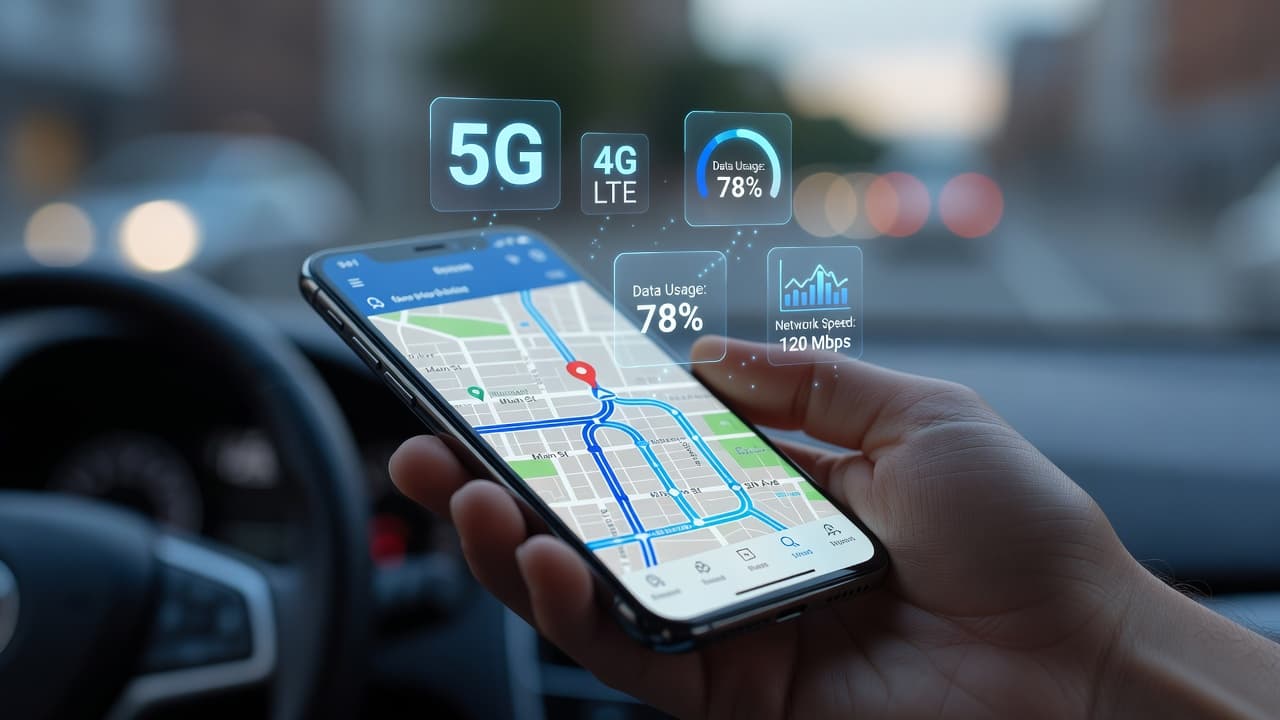
Navigation apps have become essential for daily commutes, road trips, and international travel. Whether you are checking traffic, looking for restaurants, or driving on unfamiliar streets, Apple Maps helps millions of iPhone users get around more efficiently
But if you rely heavily on mobile internet, there is an important question: how much data does Apple Maps use? If you travel frequently or have a limited data plan, understanding this can help you avoid unnecessary charges.
The good news is that Apple Maps is quite efficient compared to video streaming or social media apps. Even so, consumption can increase depending on how you use the app.
In this guide, we’ll look at how much data Apple Maps consumes, the factors that affect its usage, and the best ways to reduce it.
If you want better ones security tips connect internet abroad, Blink eSIM helps you stay connected with secure and seamless internet access worldwide.
Does Apple Maps Use a Lot of Data?
Many users wonder if Apple Maps consumes a lot of data.
The short answer is no, at least not compared to platforms like Netflix or YouTube.
Apple Maps mainly consumes data when loading:
- Maps
- Traffic updates
- Route calculations
- Live route changes
- Satellite imagery
For standard browsing, consumption tends to be quite low.
Approximate usage:
- Basic navigation: 3–5 MB per hour
- City driving with traffic updates: 5–10 MB per hour
- Satellite view or 3D mode: 15–25 MB per hour
So, if you're wondering how much data Apple Maps consumes, the answer depends mainly on how you use it.
Apple Maps Data Usage Breakdown
Understanding Apple Maps data usage is easier when broken down by activity.
1. Route Calculation
When you enter a destination, Apple Maps calculates the route using internet data.
This typically consumes between:
200 KB and 1 MB per search
A single route search does not consume much data.
2. Turn-by-turn navigation
This is the most common use of Apple Maps.
The app continuously updates:
- Position
- Speed
- Route changes
- Traffic
Average consumption:
3–7 MB per hour
This means even a long 4-hour road trip may use less than 30 MB.
3. Live traffic updates
Traffic information requires constant updates.
If you drive in heavy urban traffic, Apple Maps updates more frequently.
Examples:
- Heavy traffic city driving → higher data usage
- Highway driving → lower data usage
Traffic updates typically add between 2 and 5 MB per hour.
4. Satellite or 3D Mode
This is where data consumption increases significantly.
Satellite images and 3D maps are much heavier than the standard view.
Estimated consumption:
15–25 MB per hour
Avoid this mode if you want to save data.
5. Search for nearby places
Every time you search:
- Gas stations
- Cafes
- Hotels
- Tourist attractions
Apple Maps gets updated results from the internet.
Frequent searches increase total consumption.
How much internet does Apple Maps use per trip?
Una pregunta más práctica es: cuántos datos consume Apple Maps durante viajes reales.
Approximate estimates:
| Type of trip | Approximate consumption |
|---|---|
| Short trip of 20–30 minutes | 2–4 MB |
| Daily commute of 1 hour | 5–8 MB |
| Long journey of 4–5 hours | 20–40 MB |
| Full day of travel | 50–100 MB |
Even with heavy use, consumption is usually manageable.
In comparison:
- Video streaming: 1–3 GB per hour
- Music streaming: 40–150 MB per hour
- Apple Maps: much less
If you're looking for how many MB Apple Maps uses, standard navigation typically stays between 3 and 10 MB per hour.
Factors that affect mobile data usage in Apple Maps
There are several factors that influence Apple Maps mobile data during navigation.
1. Map display mode
Standard mode uses less data.
The modes that consume the most are:
- Satellite
- Flyover
- 3D
2. Frequency of route changes
If you take the wrong path or miss turns, Apple Maps recalculates the route several times.
More recalculations mean more data consumption.
3. Traffic density
Cities with high traffic generate more live updates.
Examples:
- New York
- London
- Tokyo
Urban browsing typically consumes more data than browsing in rural areas.
4. Search activity
Constantly searching for places increases consumption.
For example:
- Restaurants
- ATMs
- Gas stations
5. Background refresh
If Apple Maps is still running in the background, it can continue updating location services.
This may consume additional data.
How to reduce Apple Maps data usage
Now let's see how to reduce Apple Maps data consumption with practical steps.
These tips are especially useful for travelers using limited data plans or eSIM packages.
1. Use Wi-Fi before leaving
Open Apple Maps while connected to Wi-Fi.
Load beforehand:
- Routes
- Destinations
- Important stops
Cached data can reduce mobile data usage later.
This is one of the easiest ways to save data when using Apple Maps.
2. Avoid satellite view
The standard view consumes much less data.
Change from: Satellite to: Standard
This immediately reduces consumption.
3. Reduce las búsquedas innecesarias
Look around for places before you go out.
Instead of doing multiple searches along the way, save locations in advance.
Examples:
- Hotel
- Restaurant
- Parking lot
4. Turn off background App
Go to:
Settings → General → Background App Refresh
Turn off Apple Maps if you don't need to.
This helps reduce hidden data consumption.
Read why the Travelers are switching to eSIM and discover how it offers faster activation, greater flexibility, and affordable global connectivity.
5. Considera opciones de mapas sin conexión
Some map applications allow you to download routes or areas to use offline.
This can be useful during:
- International travel
- Routes through remote areas
- Areas with weak signal
Although Apple Maps offline can load some previously saved data, its main features, such as live traffic and up-to-date navigation, usually require internet.
6. Use an affordable travel data plan
One of the easiest ways to stop worrying about map usage is to choose a good connectivity option for travel.
Traditional roaming can have very high data costs.
An travel eSIM offers:
- Simple activation
- Simple activation
- Reliable connectivity
- Apple Maps vs other navigation apps
Apple Maps vs other navigation apps
Apple Maps vs other navigation apps
How does Apple Maps compare to other apps?
| App | Approximate hourly consumption |
|---|---|
| Apple Maps | 3–10 MB |
| Google Maps | 3–10 MB |
| Waze | 4–12 MB |
Apple Maps is usually among the most data-efficient navigation apps.
This makes it a good option for travelers and commuters.
Explore why the Digital nomads prefer eSIMs and learn how it offers seamless internet access without the hassle of using physical SIM cards.
Conclusion
So, how much data does Apple Maps actually use? For most users, Apple Maps uses very little data. Average navigation typically uses only 3 to 10 MB per hour, though consumption increases with satellite view, traffic updates, and frequent searches.
If you're still wondering how much data Apple Maps uses, the main idea is simple: standard navigation uses little, but your usage habits have a big impact.
To keep Apple Maps' power consumption low:
- Use Wi-Fi before you travel
- Avoid satellite mode
- Limit unnecessary searches
- Turn off background refresh
Following these steps makes it easier to control consumption and avoid using more data than necessary.
Frequently Asked Questions
1. How much data does Apple Maps consume per hour?
Apple Maps typically uses between 3 and 10 MB per hour for standard navigation. Usage increases if you use satellite mode or frequent traffic updates.
2. Does Apple Maps use more data than Google Maps?
Not usually. Apple Maps is generally slightly more efficient, especially when used in standard navigation mode.
3. Does Apple Maps work without internet?
Apple Maps requires an internet connection for live navigation, route calculation, and traffic updates. However, some previously loaded maps may still appear in the cache.
4. Does satellite mode consume more data?
Yes. Satellite and 3D modes consume significantly more data than the standard map view.
5. How can I reduce data usage in Apple Maps?
You can reduce data usage by using Wi-Fi before traveling, avoiding satellite mode, limiting searches, and disabling background app refresh.